Adblock Plus Extension for Firefox

Adblock Plus is an indispensable extension for anybody who finds flashing ads distracting.

Don’t get me wrong, I have nothing against ads in general, they pay the bills for a great number of the web sites that you and I get to enjoy for no cost to us at all. But, unfortunately, some folks feel that their ads really need to get in your face in order to be effective. You know the ones I’m talking about, you’re trying to read an article and the sidebar has a banner that is alternately flashing Red and Black and is so gaudy that you put your hand up to block the ad so you can actually see the content.

Some folks try to block all ads from showing up on their browser. I’m a moderate in this sense, I only block ads that are truly annoying. If something is flashing at me and continues to flash, I simply right click on it and chose “Adblock Image”. A customization box comes up that defaults to adblocking the exact image that is currently bothering me. This can be modified with wildcard characters if I choose to block everything from the the same domain/folder or even anything from the same domain (most ads are sourced from a domain other than the one you are visiting). I seldom will block an entire domain unless I am finding that there are a LOT of ads sourced from them that are interfering with my browsing experience.

Similarly, for flash content, I have Adblock Plus configured to show “Obj-Tabs” which show up as a little tab with the word “Adblock” in it associated with flash animations. If a flash animation is in an endless loop after I’ve seen it once or twice I will left-click on it and then click OK to remove it.

In both cases above, the area the image / flash occupied is simply blanked so that the web page formatting is not distorted. The items are blocked permanently so they won’t show up if you refresh the screen.

Again, my philosophy is that ads can be a good thing. They are a fair way for site providers to try to profit from their efforts to provide content that you obviously find useful (why else would you be surfing there?). So I don’t advocate wholesale blocking of all ads. But it is great to have a tool to get rid of tasteless and annoying ads when you get tired of them.

Now I’m looking for a way to block those “Walk-on” ads that come up and wander across the screen after the web page has loaded. My greatest issue with them is that I am never 100% confident that clicking the “Close” button will legitimate close the ad but may actually execute some other code (install software?) that I really don’t want on my computer. And, of course, they are now wandering in front of the text I am trying to read.

Firefox

Get Firefox!

I use the FireFox browser, maintained by the Mozilla Foundation.

I don’t use it because it’s any faster than the beleaguered Internet Explorer (IE), nor do I use it for its touted security features. I use it because the tabbed browsing experience is VERY appealing to me. That and the plethora of extensions available for this browser makes it a superior browsing platform. I’ll mention the various extensions that I find useful in future postings, but for those of you that fear using Firefox because you know that there are some websites that just won’t work without Internet Explorer I want to mention the “IE View” extension.

This extension adds an entry to your context menu (right-click on your web page to see your current context menu) that allows you to “View this page in IE”. If you find your web page is complaining that you are not using IE or perhaps is not acting the way you think it should, then clicking this context menu item quickly quickly launches IE using the current URL.

The vast majority of web sites work fine under Firefox. Customizing your web browsing experience so that your browser has installed only those features that you use certainly makes for a leaner browser. For myself, I’ve added enough extensions that it now takes about the same amount of time to launch Firefox as it does to launch IE. But the Firefox browser is orders of magnitude more useful to me and the way I like to surf.

Active Words

I’m currently test driving ActiveWords and have to say that I’m impressed so far. The premise initially sounded a little shaky but as I keep working I find more and more uses for it.

I like the fact that I now have an easily configurable word corrector that is active in every application. So I only need to maintain the one set of words. I’m talking about capitalizing proper nouns, correcting dyslexic typing, removing double caps at the beginning of words.

I can also assign short forms to things like “adr” which will expand into my street address or “mp” which will expand into my general email address.

You can even go so far as to create entire macros that will pull windows to the fore and then perform actions against them. A great time saver if you have some repetitive tasks. For me – I don’t like all my apps starting up at once when I (infrequently) reboot the machine. Often if I reboot it’s because I’m troubleshooting or focused on doing something specific. So I have a macro called “Start” that will sequentially initiate (and manipulate) all the applications that I like to have running when I’m ready to have them run.

Dual Monitors

A while ago I decided to add a second monitor to my system. It was MUCH easier than I thought. I couldn’t use the video adapter built into my motherboard for this, but I *could* pick up a card that had two outputs (in this case a digital and an analog) and then direct each output to a separate monitor. Extending the desktop in XP is trivial.

Then I decided I wanted one of the monitors to read like a sheet of paper. But it wasn’t one of your “new fandangled” ones that can sense its orientation so I picked up a wonderful piece of software called Pivot Pro that allows me to rotate my screen(s) as I see fit. I have has no real issues with it except that PowerPoint presentations insist on displaying on my secondary monitor (the rotated one) and for some reason they insist on ignoring my Pivot Pro settings.

I suspect there is a way to force PowerPoint to behave, but honestly, it’s not that big a deal for me.

Here’s what it looks like:
1040

Getting DirecTV Tivo to update over Vonage

It turns out that the lightning strike I encountered back in August toasted my DirectTV unit. Not totally, mind you, but enough that it was acting really wonky. Couldn’t get some channels any longer, sometimes it would reboot for no reason and the 30 second skip simply takes you to either the end or the beginning of your recorded show no matter what adjustments you try to make to it.

So I ended up with a very similar unit, a Phillips DSR708 Series 2 DirecTivo. I’m not sure if its modem chipset is more robust than my original one but I haven’t had NEARLY the issues connecting that I had before.
I did have to take it over to a friend’s house to do initial programming – just plugged the unit into their TV and Phone line (Thanks Keith and Zena!) and allowed the programming to proceed. I also gave it a “212” area code as, from what I’ve read in various newsgroups and web articles, that seems to be an area code that folks are having the most luck with in connecting DirecTivo over VOIP.

I haven’t bothered to tabulate the success rate of my manually initiated calls but it was pretty low when I first installed the unit at the end of August, 2005. However I’ve noticed that the scheduled updates seem to be hitting about a 50% success rate.

Either Vonage changed something or, as I said, the new unit’s modem is better, but here are my settings in case they can help anybody else:

Unit: Phillips DSR708
Series2
Dial-in 1-212-271-7103 (even though I live in a 770 area code)
Dial Prefix ,#096
Call Waiting Prefix *99,
Phone Avail Detection Off
Dial Tone Detection On

RFID Tags and their implications

I was just talking to my wife about RFID tags (yes, I know scintillating conversation for a Sunday morning) and we were discussing some of the both cool and scary uses to which the technology can be put.

On the one hand checkout at the supermarket can be as simple as just rolling your cart out the door (assuming you can bag your items in the cart while you shop). It’s just a matter of time until your credit and debit cards will also have little RFID tags as well. So, in addition to scanning your purchases the store also knows the means you have available to pay for them. All you’d need to do is to select from a list of cards that the scanner had detected on your person and the slowest part of the transaction would be having the receipt printed.

Now picture shopping with a friend. It might be fun if they walked through the shopping scanner with you. You could just select one of their credit accounts! 🙂 I know there will be some validation but the idea tickled me.

But one of the best (ab)uses of RFID technology will be when this generation of tech savvy kids come into the living room on a blustery late-December morning and find grandma proudly placing carefully wrapped Christmas packages around the base of the tree. She’ll look up at them and see the eagerness in their eyes and admonish cheerily, “Now these gifts are to stay right where they are until Christmas morning.”. The children nod happily and pull out their gameboy (or whatever the current handheld gaming/PDA/Cellular Phone toy is called by then) and wave it over the base of the tree.

While turning to leave to go play with their friends outside they call back over their shoulder, “Thanks for the sweater Grandma, the size is a little small for me but I can exchange it for a larger one if you leave the gift receipt with mom and dad. And I can’t wait to play with that new Fast’n’Furious XXII!”

Podcast – Slacker Astronomy

is a quirky, sometimes corny but always enlightening podcast. Typically 10 to 15 minutes long this is a quick way to stay up to date on those things that occupy the sky above us.

Whether it’s talking about the newest planet in our solar system (yeah, yeah I know the jury is still out on that one) or projectiles from NASA slamming into passing comets with suitably spectacular results, Slacker Astronomy will provide enough details so you can know what is going on without having to be an astrophysisist.

Genuine Windows Validation

I came across what seems like a really interesting screensaver alternative from Microsoft – The Microsoft Video Screensaver.

Unfortunately it’s part of their Genuine Microsoft Software program. Which means your computer must be validated in order to install, and presumably to use the software.

“No problem”, thought I “I’ve got a legitimate copy of Windows XP Home edition on my box.”

But I also use FireFox as my browser which doesn’t run Active X controls. So I ended up using the alternate validation methods, one to validate my box (GenuineCheck.exe) so that I could actually download the software. This worked fine. And another that I downloaded (legitcheck.hta) that was supposed to prime my box to actually allow the software to install.

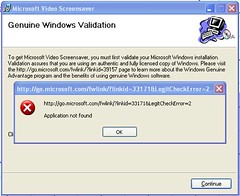
Try as I might, every time I attempt to install the Video Screensaver, it fails with a dialog box that gives this URL
http://go.microsoft.com/fwlink/?linkid=33171&LegitCheckError=2
and a message saying “Application Not Found”.
genuinewindowsvalidationerror

Has anybody out there seen this? This is relatively new, the video was only released on July 20, 2005 and I’ve only heard about this “Genuine Microsoft Software” program once before. So I’m pretty sure that this is a teething issue caused by MS being a little too eager to get this program out there…

Oh, and I’ve already tried resetting my default browser to Internet Explorer (I keep it up to date so that I can retrieve updates and visit the sites that have coded specifically for IE). Rebooted and the same error still haunts me.

Nothing so far in Google or on MS’ Knowledge base – but I can’t believe I’m the first to stumble across this problem.

Coldforged.org

One of the weblogs that I keep an eye on is Coldforged.org’s.

He has a wide range of interests, many of which I share. The site should be of particular interest to anybody interested in tweaking WordPress. He recently posted some tips to make XP run a little faster that may prove useful to some folks out there.

I especially liked this one (a link from Webgear Resources – Datacreek.net). Check out item number 6 about making previously hidden items show up in your add/remove programs dialog.